
The DZMx, when setup and configured correctly, has the ability to collect data for and transmit your:
- Total Time Airframe (TTAF)
- Daily Flight Time (DFT)
- Landings Count
- Engine Cycles
It also has a programmable check counter that once programmed, will display a "Check Due" warning once the counter has reached due.
The TTAF, DFT, landing and engine time data is all viewable on the DZMx unit. It can also be transmitted automatically either to your tracking provider or to an email address of your choosing. To trigger the transmission of this data, the pilot simply has to reset the DFT counter, which is a simple process done at the end of each working day for the aircraft.
The timer email arrives as a table of your TTAF, DFT, landings and engine hours displayed within a table, there is also a JSON formatted file with this information as well. The JSON file can be very easily integrated into your maintenance tracking software.
To set this feature up, you will need the following:
- Laptop and Ethernet Cable
- In order for the maintenance email to be transmitted, an Outgoing Email Account and settings will be required (you can use a Gmail or similar account for this if you don't have your own email service)
- In order for TTAF and DFT values to be counted, you will need the take-off/landing input to be configured on the DZMx or a take-off speed configured (fixed-wing)
- In order for engine starts to be counted and transmitted, an oil pressure input must be configured for engine on/off
- In order to see a check due warning pop-up message, the check due hours setting must be set and the check due warn must be set.
You will need a laptop and Ethernet cable or WiFi to connect to the DZMx with DZMx Connect. You can find details on connecting to your DZMx here.
- Plug the ethernet cable into your laptop and the Ethernet port for the DZMx
- Open up Chrome and enter the IP address for DZMx Connect into the Chrome address bar 192.168.4.1 or 192.168.2.1 if connecting via WiFi.
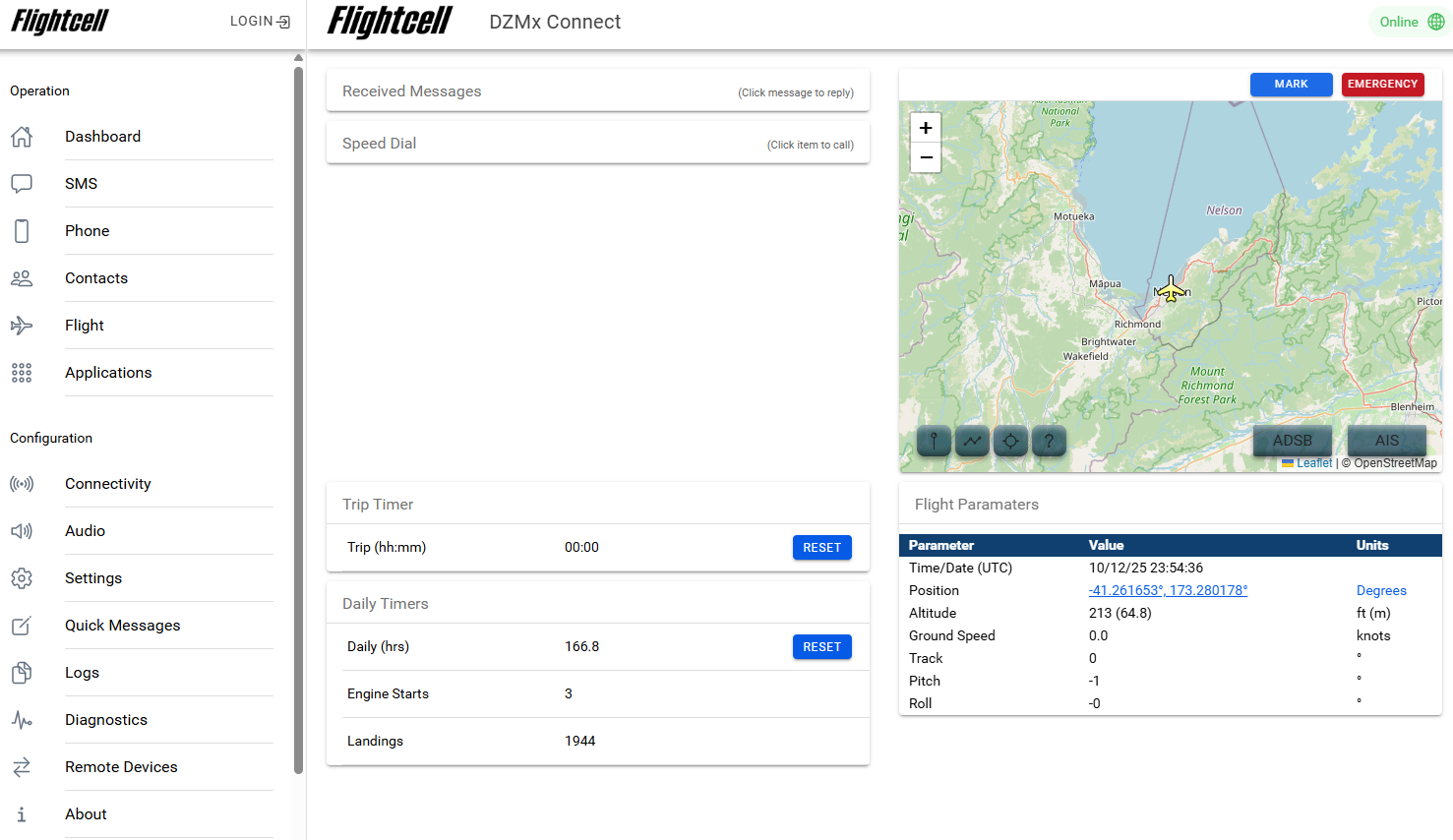
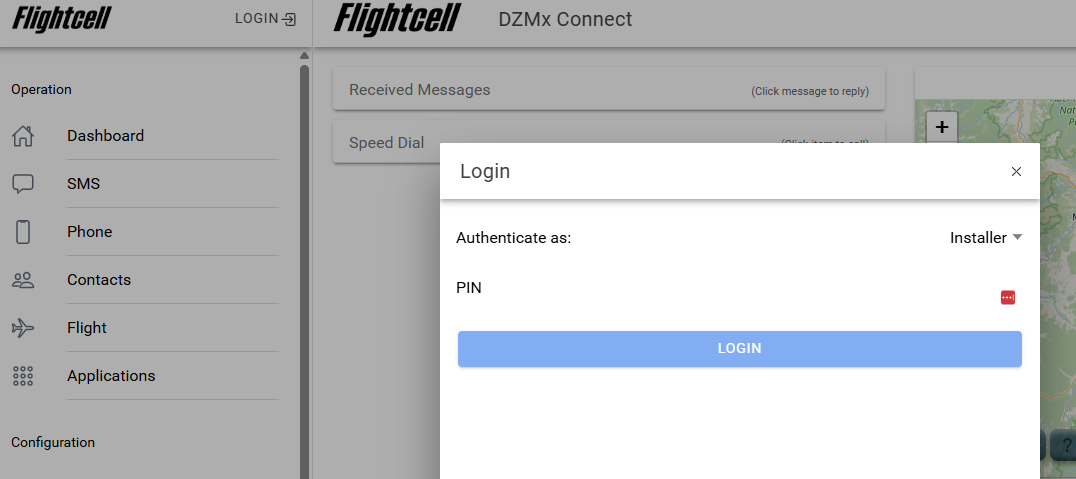
- Press the "Login" button, select "Installer" and then enter the PIN number: 2468
- You will need to have already set up the Outgoing Email Account on your DZMx. Please find the guide on setting this up here
- Now access the Hobbs and Maintenance menu to add the email address for where the emails will be sent.
- Settings -> Preferences -> Hobbs and Maintenance
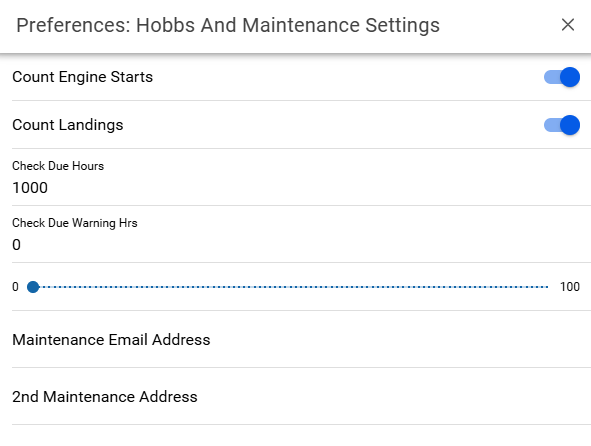
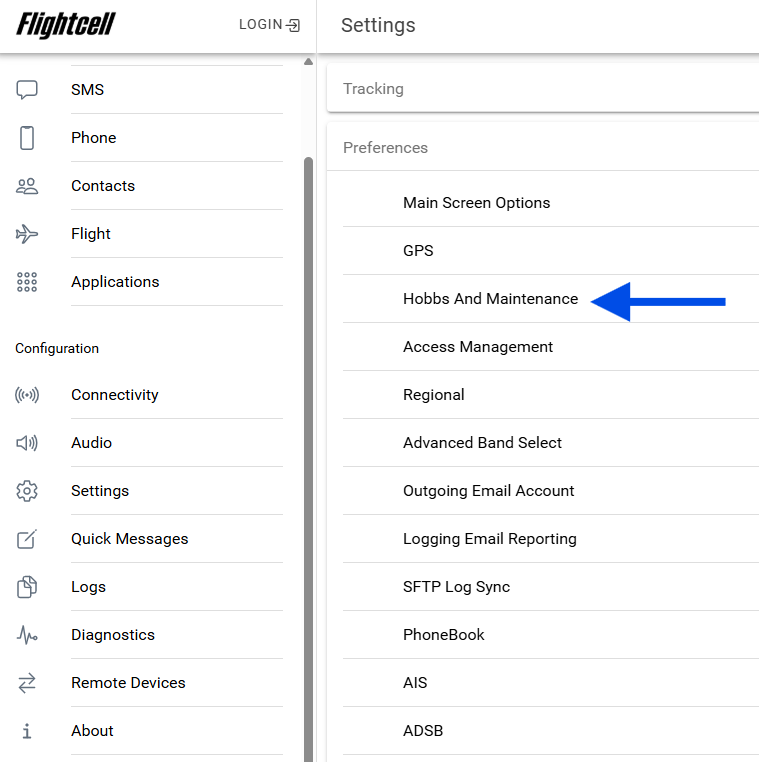 There are a couple of settings in here:
- Ensure Count Engine Starts is enabled
- Ensure Count Landings is enabled
- Check Due Hours - use to alert the pilot how many hours are left until the next check.
- Maintenance Email Address – set to the address you wish the report to be sent to
- 2ndMaintenance Address – this is optional but it’s handy to use this as backup storage of these emails
- Click Done
The last thing, we want to add the aircraft registration
- Settings -> Tracking -> General
- Add the Aircraft registration in the appropriate section.
- Click Done

Now you are done!
At the end of the day when the pilot resets the DFT, it will email the maintenance report to the maintenance secondary e-mail addresses.